How to Choose the Right Server for Your DCS Squadron
24. June 2026
Running your own DCS dedicated server gives your squadron a persistent place to train, fly multiplayer missions, and host events without depending on the host pilot’s gaming PC. The challenge is not simply installing DCS World: you also need a suitable Windows machine, a reachable network connection, a working mission rotation, and a repeatable maintenance routine.
This 2026 DCS server setup guide walks through the official Eagle Dynamics dedicated-server installer, the web-based administration interface, network ports, mission files, optional SRS and Tacview integration, and the most common launch problems. It is written for new administrators, but the checklist is also useful when moving an existing squadron to a new host.

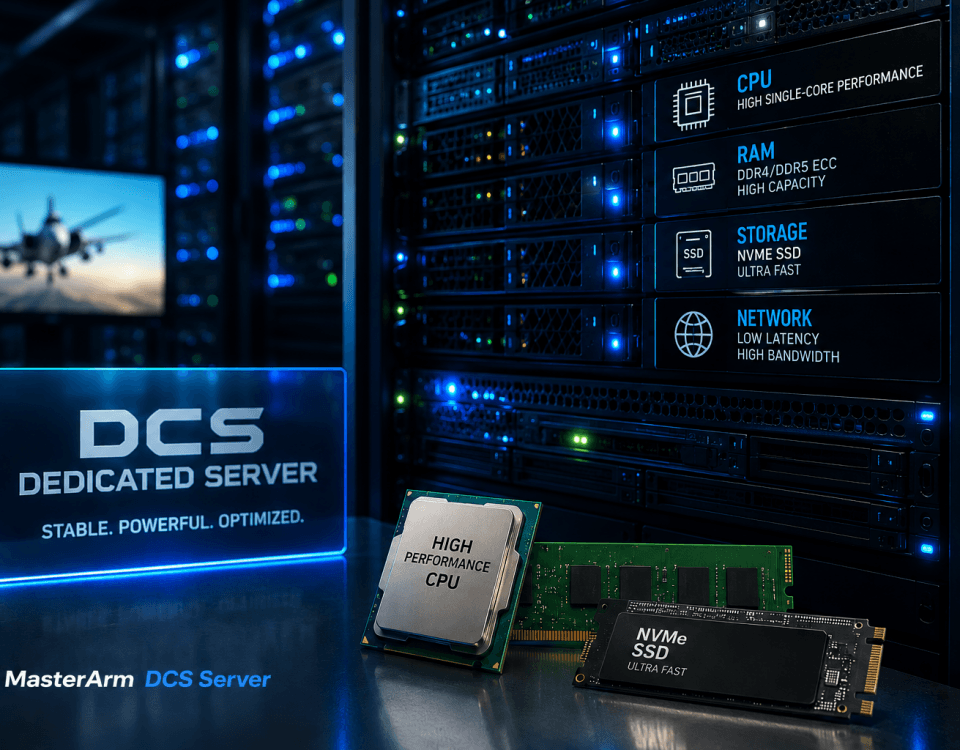
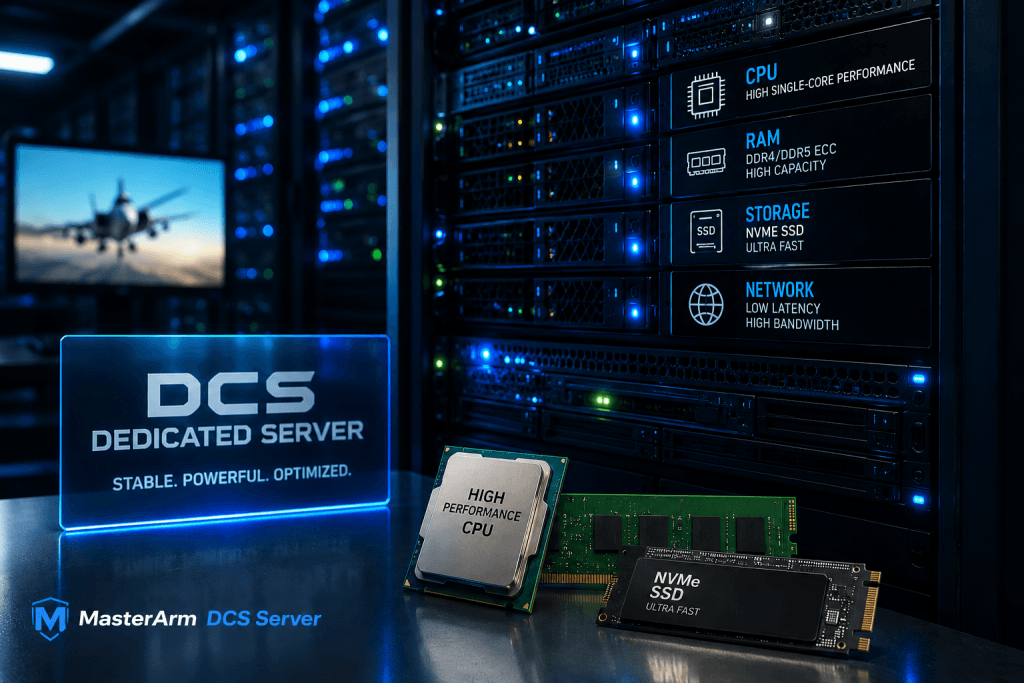
Temporary featured illustration from the MasterArm media library. The new original cover will replace it when the media upload is available.
Quick answer: Download the official DCS World Dedicated Server modular installer, install it on a compatible Windows system, run the server, configure it using the WebGUI, add a
.mizmission, and allow the configured game port (normally 10308 on both TCP and UDP) through the host firewall and any router. Test access from a different network before inviting your squadron.
What Is a DCS Dedicated Server?
A DCS dedicated server runs the multiplayer mission independently of a player’s graphical DCS session. The server performs the simulation and network-hosting work, while pilots connect using their own DCS World clients. Unlike hosting from the multiplayer menu on a gaming PC, an independent server can stay online when the original host disconnects.
Eagle Dynamics provides a headless modular server installer that omits the textures and sounds required by the full graphical client. It is controlled through a web interface rather than an in-game cockpit or rendering window. That makes it more appropriate for a machine dedicated to hosting than installing a complete gaming client just to keep a session open.
A dedicated server is especially useful for weekly squadron training, persistent PvE missions, organized PvP events, and long-running missions with many scripted units. However, a dedicated server is not automatically lag-free: mission design, CPU performance, available RAM, and network quality still matter.
1. Check the DCS Dedicated Server Requirements
The official Eagle Dynamics dedicated-server download page provides the following published baseline. These are installation/system recommendations—not a guarantee of how many players a particular mission will support.
| Component | Official minimum | Official recommendation |
|---|---|---|
| Operating system | 64-bit Windows 10 | 64-bit Windows 10, as listed on the official download page |
| Processor | Intel Core i3 2.8 GHz or AMD FX | Intel Core i5 3+ GHz or AMD FX/Ryzen |
| Memory | 16 GB RAM; 32 GB for heavy missions | 32 GB RAM; 64 GB for heavily scripted missions |
| Storage | Up to approximately 170 GB free space, depending on terrains | 250 GB SSD free space |
| Internet connection | 50 Mbps or better | 100 Mbps or better |
For serious multiplayer hosting, prioritize strong CPU performance, sufficient memory, SSD/NVMe storage, and a stable wired connection. A graphics-oriented PC is not required to render the dedicated server’s game world. The exact RAM and CPU load will vary substantially with maps, scripts, AI activity, mission complexity, and player count.

Hardware capacity should be selected for the mission workload—not player-slot count alone. Read our DCS dedicated server hardware guide.
Before installing, confirm you have: administrator access to the Windows machine; enough free disk space for the chosen terrains; an Eagle Dynamics account; access to the host firewall; and, for hosting from home, control of the router and a publicly reachable network address. A public IPv4 address or an appropriate hosting/network solution may be necessary if your ISP uses carrier-grade NAT (CGNAT).
2. Download and Install the Official Dedicated Server
- Open the official DCS World Dedicated Server download page.
- Download the modular dedicated-server installer (
DCS_World_Server_modular.exeis the filename currently shown by Eagle Dynamics). - Run the installer and choose a separate installation directory rather than overwriting an existing full DCS client installation.
- Complete the installation and install the terrain modules required by the missions you intend to host. Allow additional disk space for future updates.
- Use the Update DCS World Server shortcut after installation and again during planned maintenance windows.
- Start the dedicated-server application using the shortcut installed by the package.
The modular dedicated-server build already starts in server/no-render mode. You do not need to add the old --server or --norender switches to its default shortcut. Many older tutorials describe building a headless instance from a full game client; do not confuse those instructions with the current dedicated-server installer.
The server’s writable configuration and mission directory is under the Windows user’s Saved Games folder:
C:\Users\<WindowsUser>\Saved Games\DCS.server\This directory is different from the program installation directory. Keep track of both locations, because the Saved Games directory contains operational configuration and is an important backup target.
Terrain licensing note: Eagle Dynamics states that terrain and WWII units modules can operate without separate activation on a non-rendering dedicated server. That does not grant the same terrain to connected pilots; clients still need the relevant entitlements to use paid maps.
3. Configure the DCS Server in the WebGUI
The dedicated installer creates a Local Web GUI shortcut. Open it on the server machine to configure and manage your instance. Eagle Dynamics also offers account-based remote server management from its DCS account server page.
Start with a simple setup:
- Sign in with the Eagle Dynamics account used for server administration, where requested.
- Set a clear server name that your pilots will recognize in the multiplayer browser.
- Choose an appropriate player limit for the hardware and mission workload. A slot limit does not determine actual performance.
- Set an optional password for private squadron training or restricted events.
- Verify the game port; 10308 is the standard default unless you intentionally changed it.
- Add a small test mission to the mission list, then start the server.
For a first test, a simple Caucasus mission with a few player aircraft is better than a mission with hundreds of AI units and complex scripts. It separates basic installation and connectivity problems from mission-performance problems.
Keep the WebGUI and account credentials private. Administration access is different from the public DCS game port, and your management interface should not be exposed unnecessarily to the open internet.
4. Add Your First .miz Mission and Start a Rotation
DCS missions are distributed as .miz files. Create a test mission with the DCS Mission Editor on a compatible client, or use an existing mission you have permission to run.
- Make sure the server has the terrain needed by your mission.
- Copy the
.mizfile into a location accessible to the dedicated server. A practical location is theMissionsfolder beneath the server’s Saved Games directory:
C:\Users\<WindowsUser>\Saved Games\DCS.server\Missions\- Open the WebGUI and add the mission from its file location to the server’s mission list.
- Choose your desired rotation behavior, start the mission, and verify that the server reports it as running.
- Connect from a separate DCS client and confirm that you can select an aircraft, enter the mission, and fly.
When the first mission works, add additional missions and decide whether the server should loop through the list or remain on one mission until an administrator changes it. For persistent campaigns, check mission-specific restart and persistence requirements before enabling automatic rotation.
Important: A mission that loads successfully can still perform badly after dozens of AI aircraft, ground units, triggers, or scripts become active. Test the actual mission with representative pilots—not just an empty lobby. For more detail, see How to Choose the Right Server for Your DCS Squadron.
5. Open the Correct DCS Ports and Test Connectivity
Networking is often the difference between a server that appears to run normally and one that squadron members cannot join.
| Service | Default port | Protocol | Guidance |
|---|---|---|---|
| DCS multiplayer game traffic | 10308 | TCP and UDP | Allow inbound traffic and forward both protocols through NAT when applicable. |
| DCS WebGUI administration | Configuration-dependent | TCP | Verify the installed configuration; restrict administrator access rather than publishing the interface openly. |
| SRS radio server (optional) | 5002 | TCP and UDP | Needed only when you host an SRS server using the default SRS port. |
The official DCS dedicated-server installer page lists 8088/TCP as the default remote WebGUI port, while another Eagle Dynamics support FAQ mentions 8080/TCP. Because those official documents differ, check the actual WebGUI configuration on your installed build instead of assuming one port is universal. If remote access is necessary, prefer a private VPN or an equivalent restricted management path.
On Windows, allow DCS_Server.exe (or the executable used by your server installation) through Microsoft Defender Firewall, and create inbound rules for the configured game port on both TCP and UDP. If the machine is behind a home router, forward the corresponding ports to its correct private IP address. Reserving that private address in DHCP avoids breakage after a reboot.

Example network illustration. Firewall access, NAT forwarding, and external connectivity must all agree with the ports set on the DCS server.
For security, do not disable the host firewall just to make the server work. Use narrow inbound rules and keep the operating system updated. If you are behind CGNAT, standard port forwarding on your home router may not be enough; ask the ISP for a suitable public address or use a hosting provider with publicly reachable connectivity.
How to verify the connection: Test from a different internet connection, such as a squadron member’s network. Check both the server browser and direct IP connection. If direct IP works but the public listing does not, investigate visibility, authentication, version matching, and listing settings separately.
6. Add SRS and Tacview Only After the Base Server Works
Once DCS itself is stable, optional integrations can improve communication and mission analysis.
SRS: realistic multiplayer radio communication
DCS SimpleRadio Standalone (SRS) provides an aircraft-radio experience for multiplayer groups. Its official server setup documentation describes a default 5002 TCP/UDP server port, configurable through the SRS server settings. The SRS service can run on the same host as DCS or a separate system.
Install the latest compatible SRS release, start its server service, confirm the radio port is reachable, and test with two pilots before enabling additional options. If you use SRS auto-connect hooks, point them to the actual SRS host and port. You can also read MasterArm’s SRS guide for DCS multiplayer.
Tacview: debriefing and flight analysis
Tacview can record flight telemetry to help pilots analyze missions and improve training. Before enabling Tacview on a dedicated server, confirm the appropriate Tacview build, exporter/plugin settings, server permissions, and performance implications for your current DCS version. Configure any recording delay according to your event’s rules and operational requirements.
For setup concepts and multiplayer considerations, see our Tacview for DCS guide.
7. Keep Your DCS Server Stable After Launch
A successful first connection is only the beginning. Reliable multiplayer hosting needs a repeatable operating routine.
- Update deliberately. Plan DCS server updates around your squadron schedule; check client/server version compatibility after each update.
- Back up configuration and mission files. Include the relevant
Saved Games\DCS.servercontents and any mission-specific persistence files. Test that you can restore them. - Monitor actual mission behavior. Track CPU/RAM usage, join failures, crashes, mission loading times, and player feedback under realistic conditions.
- Control scripts and mods. Introduce changes one at a time, and maintain a known-good mission version for rollback.
- Plan restarts. For long-running missions, establish an event-friendly restart schedule and announce maintenance to pilots.
- Protect administrative access. Use strong account credentials, restrict remote access, and keep the host operating system patched.
Large PvE campaigns can behave very differently from a small PvP training mission. If performance degrades, investigate mission triggers, AI activity, scripts, and storage before assuming you need a dramatically higher player-slot count.
8. DCS Dedicated Server Troubleshooting
| Symptom | What to check first |
|---|---|
| Server runs but nobody can connect | Confirm the server’s game port; allow 10308 TCP/UDP or your configured replacement through Windows Firewall and any NAT. Check for CGNAT. |
| Server is absent from the public list | Update DCS, review public/visibility settings, and test direct IP connection. |
| Players disconnect or experience lag | Check network stability and mission workload; compare an empty test mission with the real campaign. |
A .miz file will not load | Check DCS build compatibility, installed terrain, required mods, and mission log errors. |
| SRS users connect but have no voice | Verify SRS TCP/UDP on the configured port, client radio settings, and push-to-talk setup. |
| Server fails after an update | Confirm the installed version, review logs, and test with a known-good mission and compatible add-ons. |
Eagle Dynamics also maintains a multiplayer server connectivity FAQ. Use the DCS installation and server logs when symptoms cannot be reproduced with a minimal test mission.
9. Self-Hosting vs Managed DCS Server Hosting
Self-hosting provides maximum control and can be rewarding for technically experienced squadron administrators. It also makes you responsible for Windows maintenance, internet connectivity, firewall rules, file backups, uptime, and troubleshooting.
Managed hosting can reduce the infrastructure work, particularly for international squadrons, event organizers, or groups that want a server online without leaving a personal gaming machine running. Compare providers based on CPU and RAM resources, server location, storage, network connectivity, technical support, and the actual level of management included—not just advertised player slots.
If you would rather concentrate on flying and mission design, explore MasterArm’s prepaid DCS servers, subscription server options, or squadron hosting packages. Check the current product details for exact features, availability, and delivery terms before ordering.
Frequently Asked Questions
Do I need a powerful graphics card to run a DCS dedicated server?
The official dedicated-server build runs without rendering the 3D game world and excludes much of the graphical client content. Focus on a compatible Windows host, CPU performance, RAM, SSD storage, and network reliability. Review the current official system requirements before choosing hardware.
Which port does a DCS dedicated server use?
The standard DCS multiplayer port is 10308 for both TCP and UDP. If you change the game port, update the Windows firewall and router/NAT rules to match. Remote administration is a separate service and should be restricted.
Can I host DCS missions on a home computer?
Yes, provided the machine meets the server requirements and your connection supports inbound connectivity. Your ISP’s NAT setup, available upload capacity, and whether the machine can stay online are important considerations.
Do I need to purchase every terrain module for the headless server?
Eagle Dynamics states that terrain and WWII units modules do not require activation when operated in non-rendering dedicated-server mode. Players still need their own compatible client-side content rights.
Is a DCS dedicated server automatically better for multiplayer performance?
Not always. It separates hosting from a player’s client, but it cannot compensate for poorly optimized missions, constrained hardware, or unreliable connectivity. Test with the actual mission workload and intended group size.
Final Checklist: Ready for Your First Flight?
Before inviting everyone to a squadron event, confirm that the dedicated server is updated, the intended mission loads, 10308 TCP and UDP (or your chosen game port) are reachable, a pilot can connect from another network, optional radio services work, and backups are in place.
Whether you self-host or choose a managed provider, a reliable DCS server begins with the same fundamentals: correct installation, secure connectivity, sensible mission design, and ongoing maintenance.
Need help choosing hosting for your squadron? Compare MasterArm server options or contact the MasterArm team to discuss your mission type and expected player count.
—
Technical references: Eagle Dynamics dedicated-server installer · Eagle Dynamics multiplayer server FAQ · SRS server documentation. Checked November 2026. Specific UI labels, requirements, and default management ports can change with future versions.