


Thank You for 18 Months of Growth & Trust in the DCS Community
7. July 2025
SRS DCS – Realistic Radio Communication for Multiplayer
30. March 2026
Tacview DCS: Complete Guide to Installation, Features, Delay & Server Analysis
Tacview DCS is one of the most powerful tools for analyzing your missions in Digital Combat Simulator (DCS). If you're running missions regularly, using a dedicated DCS server can significantly improve performance, stability, and allow full telemetry tracking.
What is Tacview DCS?
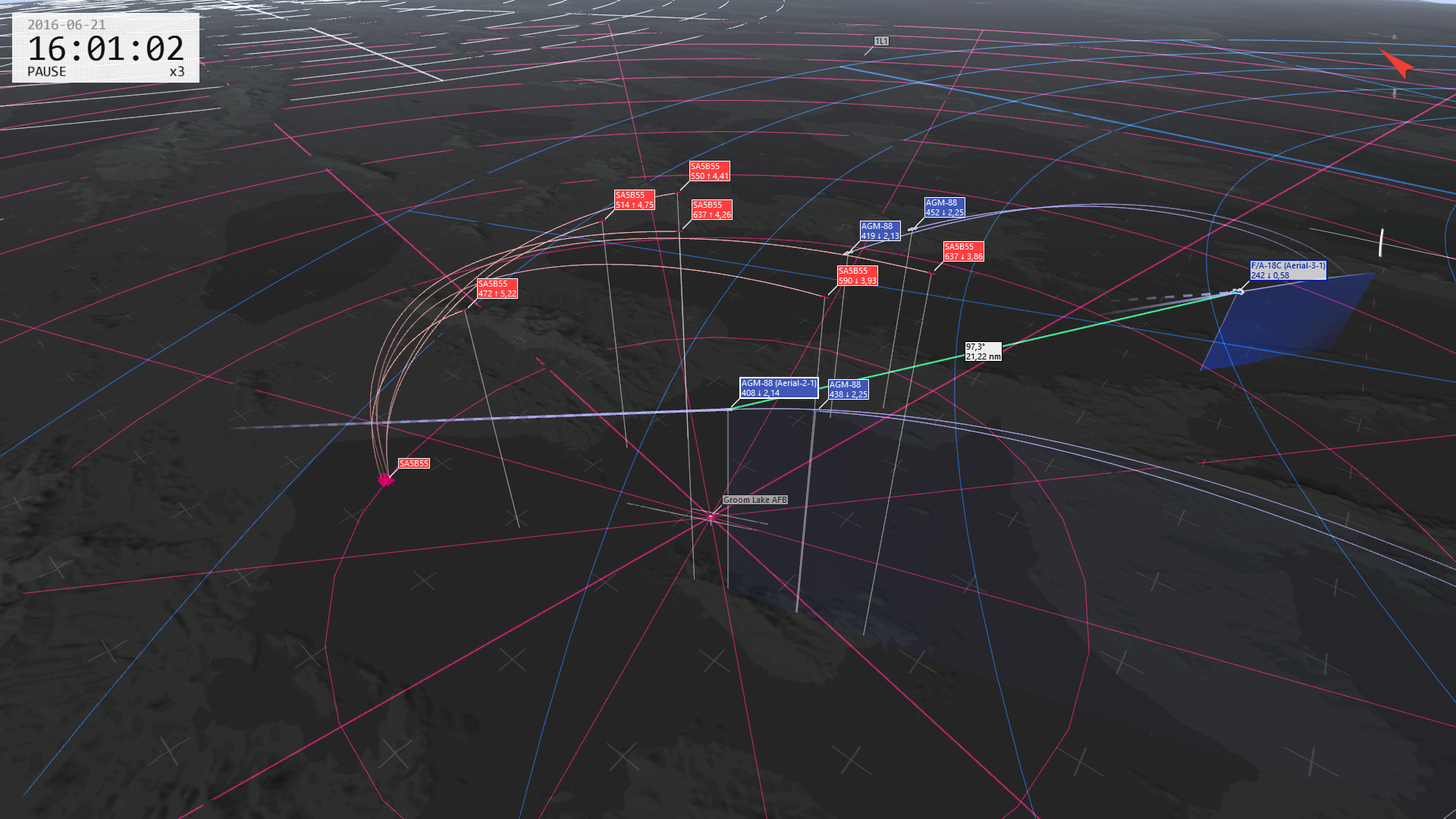
Tacview records all flight data including position, speed, altitude, and weapon usage. Therefore, you can replay missions in a detailed 3D environment and analyze every situation precisely.
Why Tacview is Essential for Players
- Analyze missile trajectories
- Replay missions in 3D
- Improve squad coordination
- Track full telemetry
Tacview Features Explained
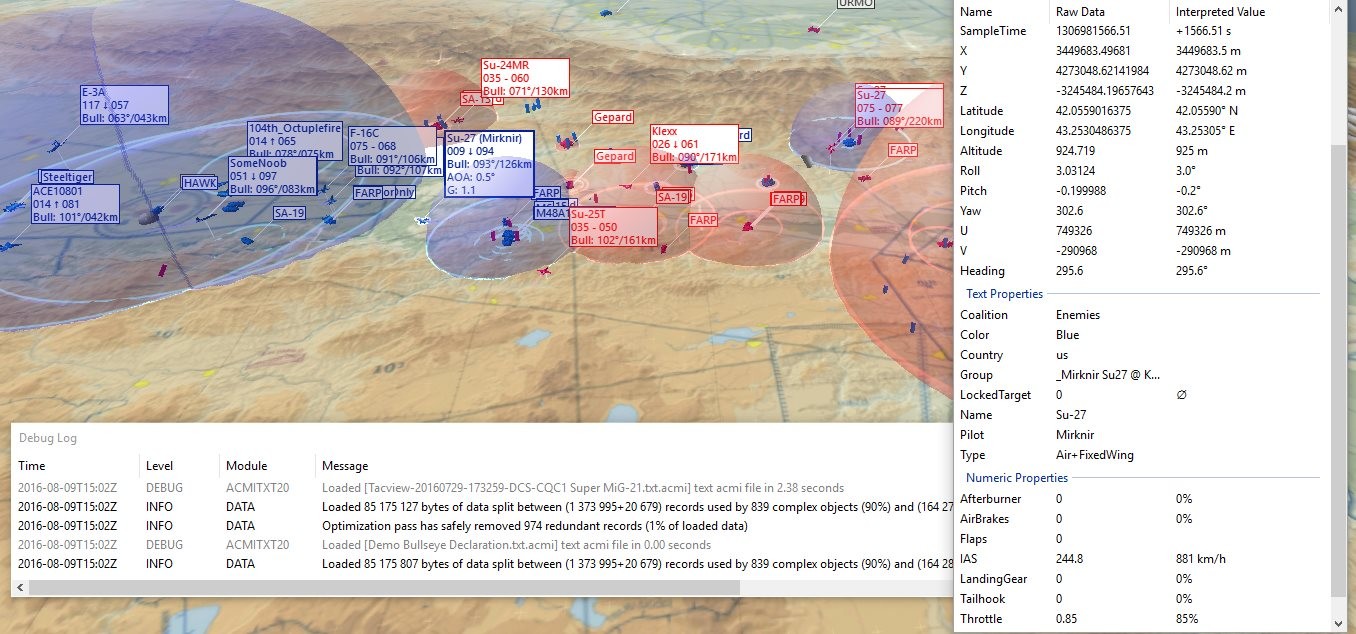
ACMI Recording
Generates detailed mission replay files for later analysis.
Real-Time Telemetry
Monitor missions live with Tacview Advanced. In addition, this allows real-time decision analysis.
Multiplayer Analysis
Works best with a high-performance DCS server.
Tacview Versions
| Feature | Standard | Advanced |
|---|---|---|
| Replay | ✔ | ✔ |
| Live Data | ✘ | ✔ |
| Multiplayer | Limited | ✔ |
How to Install Tacview
- Download Tacview from the official Tacview website
- Install the software
- Enable it in your simulator settings
- Run a mission
- Open the ACMI file
Tacview Client vs Tacview Server
Tacview Client is used for post-mission analysis, while Tacview Server enables live multiplayer telemetry and real-time tracking.
Server: Real-time multiplayer telemetry
How to Access Tacview Files
C:\Users\YourUser\Documents\Tacview
Replace "YourUser" with your actual Windows account name. On MasterArm DCS servers, Tacview files are automatically available via the TMT Panel after each mission.
On MasterArm DCS servers, Tacview files are automatically available via the TMT Panel after each mission, so you don't need to hunt for them locally.
On MasterArm DCS servers, Tacview files are automatically available via the TMT Panel after each mission.
Tacview 10-Minute Delay Explained
By default, Tacview uses a 10-minute delay in multiplayer environments. This is a standard anti-cheat mechanism to prevent players from gaining unfair advantages using real-time telemetry data.
However, many users misunderstand this behavior. The delay warning can also appear if Tacview is not properly enabled on the server.
How to Remove the 10-Minute Delay
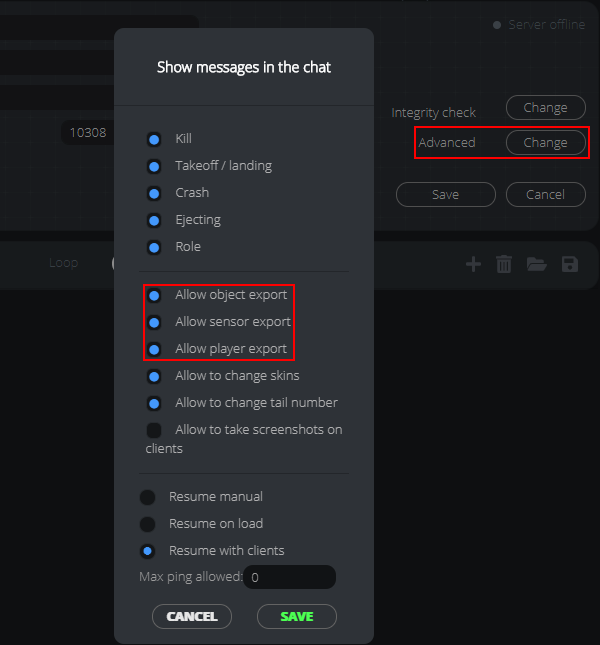
To disable the delay and enable full control over Tacview behavior, Tacview must be correctly installed and activated on the DCS server.
- Enable Tacview export on the server
- Ensure Tacview is actively running
- Access the server GUI settings
From the server GUI configuration, you can decide:
- Allow real-time telemetry for Tacview clients
- Restrict live data access (no real-time view)
- Force users to wait until mission end to view Tacview data
On optimized DCS server hosting solutions, these settings can be easily configured without manual file editing.
Does Tacview Affect Performance?
- Real-time telemetry → higher CPU/network usage
- Delayed recording → minimal impact
Best Tacview Settings for DCS Servers
- Use delay for public servers
- Disable live telemetry if not needed
- Clean old ACMI files regularly
- Optimize export settings
Tacview on MasterArm Servers
With MasterArm DCS servers, Tacview is fully integrated. You can download ACMI files instantly via the TMT Panel.
Upgrade Your DCS Experience
Run your missions on a high-performance server with full Tacview integration, optimized stability, and instant replay access.
Conclusion
Tacview is essential for serious DCS players who want deeper analysis and better performance insights.